Edit a vehicle profile

To edit an existing vehicle profile, proceed as follows:

  • Go to the “Vehicles” module. The existing vehicle profiles are listed here.
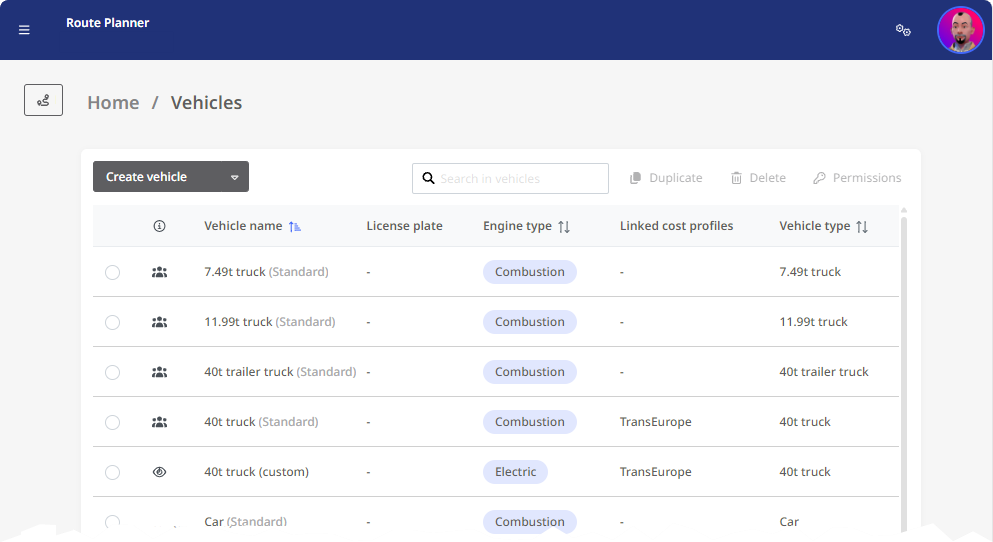
Note: Some vehicle profiles are specified by the standard of the application and cannot be changed. Such vehicles are provided with the addition “(Standard)”.
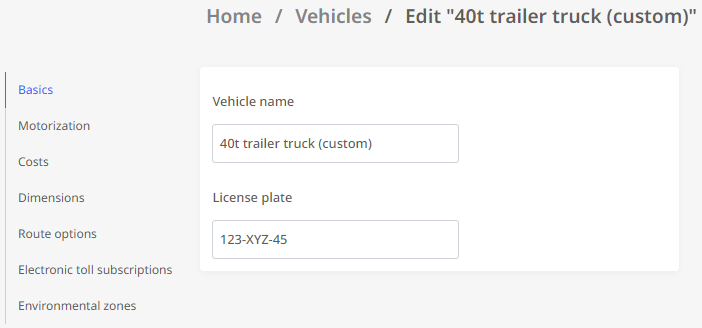
  • Now click on the vehicle profile you want to edit. The form of the vehicle profile is now displayed.

  • Here you can change the existing settings. The procedure is the same as described under “Create a vehicle profile”.

  • As soon as you have made all the desired changes, confirm them by clicking on the <Save and close> button in the upper left window area.

Warning: Conflicting changes to vehicle profiles

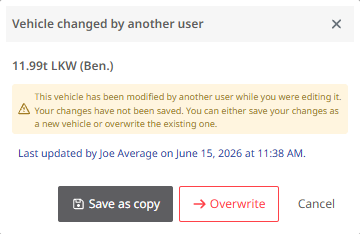
With public profiles, two users can edit the same profile at the same time. TLNplanner prevents the changes made by the first editor from being accidentally overwritten by the changes made by the second editor. If you want to save changes to a vehicle, and another user has already made and saved changes while you had the profile open, a corresponding message will appear. You can now decide:

  • Save as copy - The other user's changes are preserved, and the profile you have modified is saved as a copy.

  • Overwrite - Your changes to the profile are saved, and the other user's changes are permanently lost.

  • Cancel - You return to the editing window. Your changes have not been saved.