Edit a cost profile

How to edit an existing cost profile:

  • Open the “Cost” module to display all existing profiles
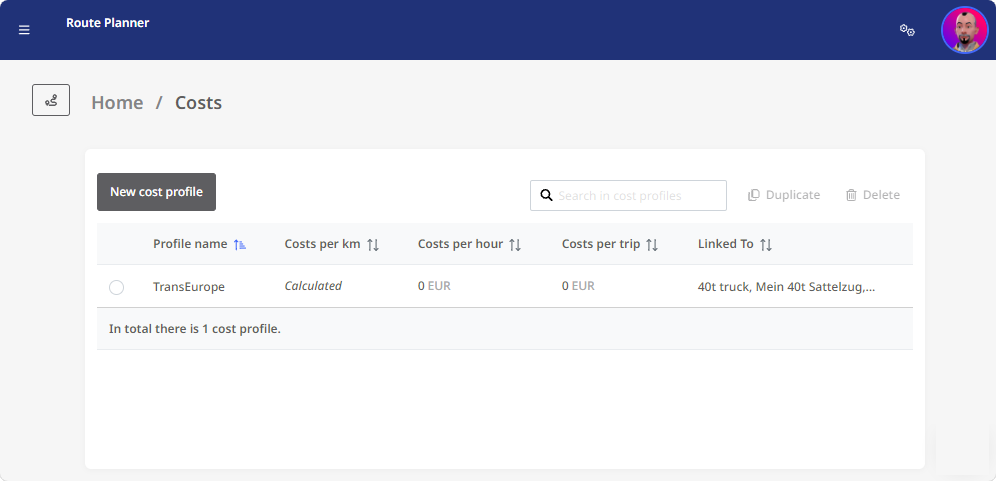
  • Click on the desired profile to open the profile form.
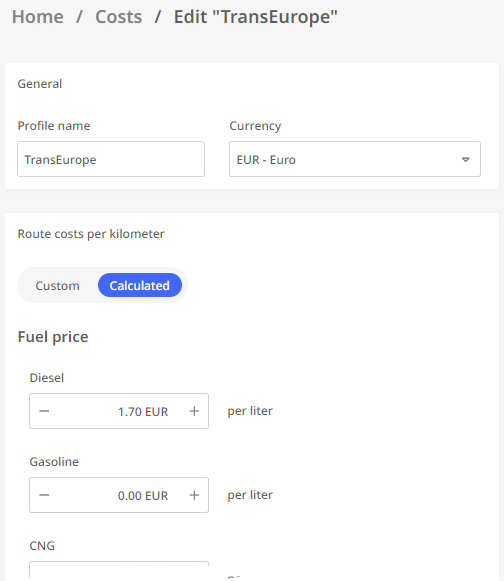
  • Adjust the settings as when creating a new profile (see “Create a cost profile").

  • Click <Save and back to the list> to take over the changes.

Warning: Conflicting changes to Cost profiles

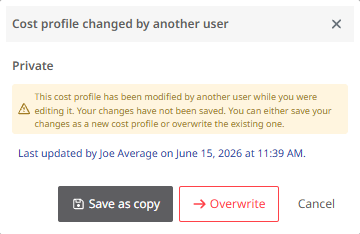
With public profiles, two users can edit the same profile at the same time. TLNplanner prevents the changes made by the first editor from being accidentally overwritten by the changes made by the second editor. If you want to save changes to a cost profile, and another user has already made and saved changes while you had the profile open, a corresponding message will appear. You can now decide:

  • Save as copy - The other user's changes are preserved, and the profile you have modified is saved as a copy.

  • Overwrite - Your changes to the profile are saved, and the other user's changes are permanently lost.

  • Cancel - You return to the editing window. Your changes have not been saved.